How to Download Favicons from a Website URL (All Sizes)
How to Download Favicons from a Website URL (All Sizes)
The quickest way to grab a favicon is to append /favicon.ico to any domain and hit enter. It works most of the time. The problem is that what you get is usually a 16x16 or 32x32 ICO file, which is fine for browser tab rendering but useless for a brand deck, a competitor comparison slide, or any kind of high-DPI design work.
Modern sites publish favicons at multiple sizes across multiple formats. Here is how to find and download all of them.
The /favicon.ico Method (and Its Limits)
Starting with the obvious: open a new tab and type https://example.com/favicon.ico. Most servers will return something. You can right-click, save the file, and move on.
Where this fails:
- The ICO file might only contain a 16x16 version embedded in a multi-size container
- The site might have disabled or removed the ICO route entirely in favour of PNG or SVG
- ICO files are awkward to work with in design tools without conversion
For anything beyond a quick sanity check, the ICO path is a starting point, not a destination.
Reading the HTML <head> for Declared Favicons
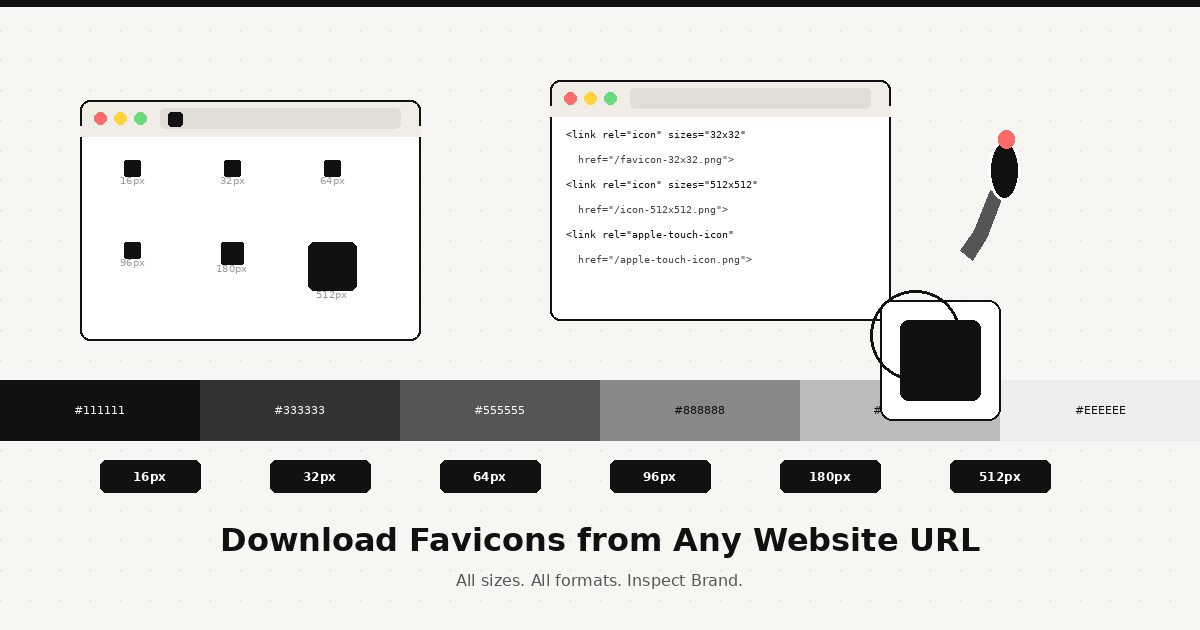
The most reliable method is checking what the site actually declares. View the source of any page (Cmd+U on Mac, Ctrl+U on Windows/Linux) and search for rel="icon". A well-configured site will have several link tags:
<link rel="icon" type="image/png" sizes="32x32" href="/favicon-32x32.png">
<link rel="icon" type="image/png" sizes="96x96" href="/favicon-96x96.png">
<link rel="icon" type="image/svg+xml" href="/favicon.svg">
<link rel="apple-touch-icon" sizes="180x180" href="/apple-touch-icon.png">
<link rel="manifest" href="/site.webmanifest">
Each href is a path you can copy and combine with the site's origin to get a direct download URL. The apple-touch-icon at 180x180 is typically the largest PNG declared directly in the HTML. If there is an SVG version, that is the best quality option regardless of display size.
Downloading via the Web App Manifest
The manifest link in the HTML head points to a JSON file that contains the full icon set. Fetch it directly:
curl -s https://example.com/site.webmanifestThe response will include an icons array with paths and sizes:
{
  "icons": [
    { "src": "/icons/icon-192x192.png", "sizes": "192x192", "type": "image/png" },
    { "src": "/icons/icon-512x512.png", "sizes": "512x512", "type": "image/png" },
    { "src": "/icons/icon.svg", "sizes": "any", "type": "image/svg+xml", "purpose": "maskable" }
  ]
}
The 512x512 PNG is sufficient for almost any use case. The SVG, if present, is the cleanest option because it scales to any size without quality loss.
One thing to watch: icons marked "purpose": "maskable" include extra padding for Android's adaptive icon system. They are designed to be cropped into a circle, so the visible artwork sits inside a central safe zone. For display use rather than installation, look for a non-maskable variant.
Using curl to Download Specific Sizes
Once you have a direct URL, downloading is straightforward:
# Download the 512x512 PNG
curl -o favicon-512.png https://example.com/icons/icon-512x512.png

# Download the SVG
curl -o favicon.svg https://example.com/favicon.svg

# Download everything in one pass using a simple loop
for size in 32x32 96x96 180x180 192x192 512x512; do
  curl -sO "https://example.com/favicon-${size}.png"
done
If you need to check whether a path actually returns an image rather than a 404, add -I to check the response headers first:
curl -I https://example.com/favicon-512x512.pngA 200 status with Content-Type: image/png confirms the file exists.
The Google Favicon API
Google maintains a public endpoint that returns a favicon for any domain at a specified size:
https://www.google.com/s2/favicons?sz=64&domain=example.comChange sz to 16, 32, 64, or 128 to get different sizes. This is useful for quick tooling or when you want a consistent fallback that does not require scraping the target site's HTML. It works even when a site has an unusual setup, since Google has already crawled and cached the favicon.
The catch is that you are getting Google's cached version, which may lag behind recent favicon updates, and you are limited to the sizes Google exposes rather than whatever the site originally published.
Using DevTools When Paths Are Non-Standard
Some sites serve favicons through CDN paths with cache-busting hashes, or load them via JavaScript. In those cases, the Network tab in browser DevTools catches everything the browser actually fetches.
Open DevTools, go to the Network tab, filter by Img, reload the page, and sort by time or name. Look for small image requests early in the waterfall. Right-click any result and choose Open in new tab to get the full URL, then download from there.
Downloading Favicons at Scale
All of these steps work fine for a single site. For a competitive audit covering 15 or 20 brands, going through source view and manifests manually eats up time fast.
Use Inspect Brand to pull favicons and full brand assets from any URL in one step. It reads the HTML head, fetches the manifest if one is declared, and returns the best available icon along with the complete color palette and font stack. If you are running a brand comparison or building a competitive reference doc, you can go from a list of URLs to organized, exportable brand data without repeating the same DevTools workflow for each domain.
Format Trade-offs at a Glance
- SVG: Best quality, vector, works at any size. Not all browsers render SVG favicons identically, but for download and design use it is the first thing to look for.
- PNG (512x512 or 192x192): Solid for slides, docs, and reference work. Widely supported.
- PNG (180x180 apple-touch-icon): A reliable fallback when the manifest does not exist. Designed for iOS home screens, so quality is usually acceptable.
- ICO: Multi-resolution container format, awkward in design tools. Useful only when you specifically need the ICO format for a Windows app or legacy browser context.
If a site only has an ICO file and you need a clean PNG, ImageMagick can extract individual sizes from it:
convert favicon.ico favicon_%d.pngThis outputs each embedded resolution as a separate PNG. It is a decent fallback, but the HTML head route will turn up a better option before you need to reach for this.
---
The full download workflow takes under two minutes per site: check the <head> for declared icons, grab the manifest if it is listed, and use the Network tab when paths are obscured. For research across multiple brands, use Inspect Brand to skip the repetitive manual steps and get clean structured output from a URL list.