How to Extract Full Brand Assets from a Website in Seconds
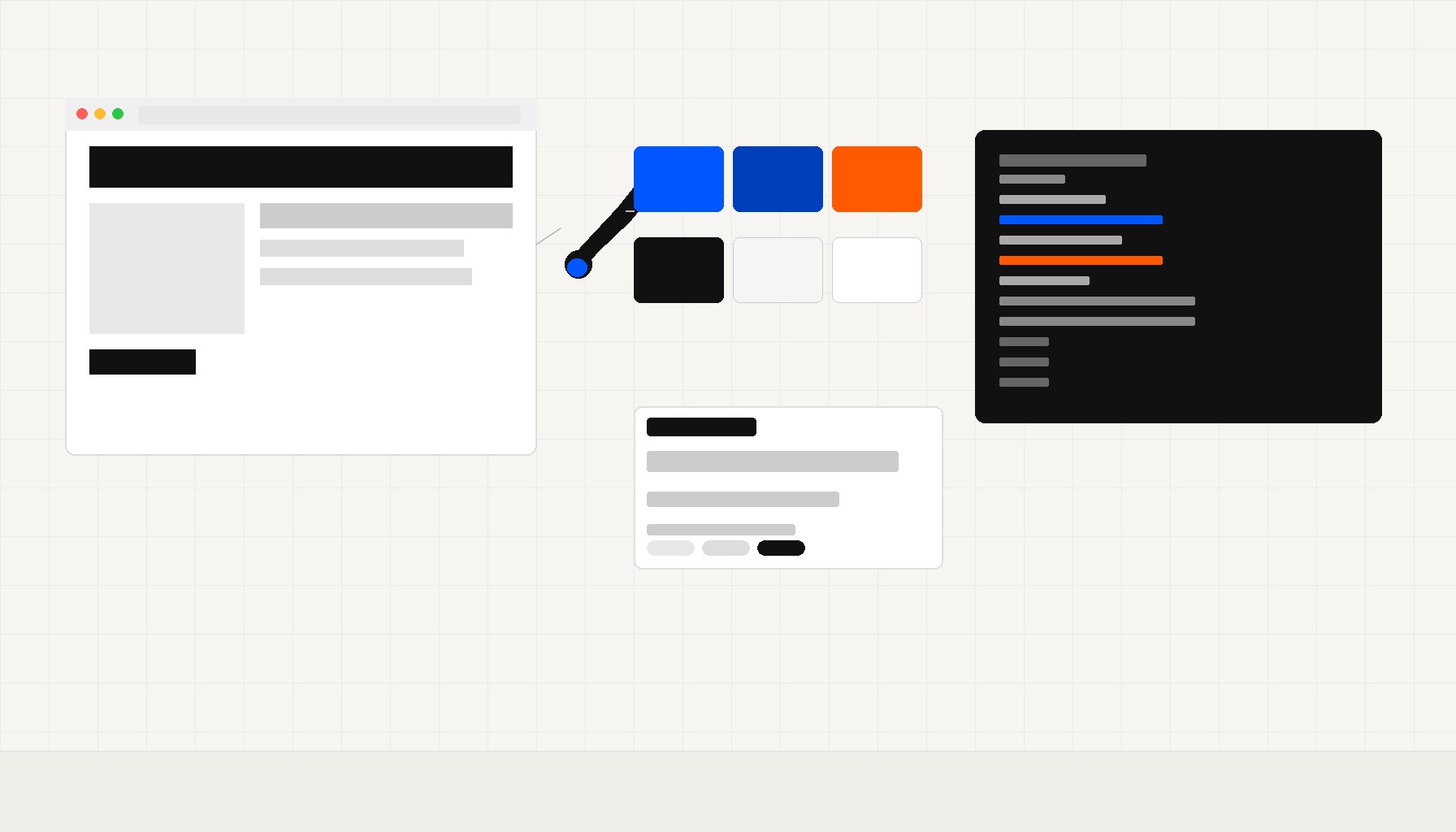
How to Extract Full Brand Assets from a Website in Seconds
You're pitching a rebrand, onboarding a new client, or doing a competitive audit. Either way, you need their brand assets fast and you don't want to spend an afternoon digging through source code. Here's the full workflow, from manual DevTools extraction to automating the whole thing.
What Counts as a Brand Asset
When someone says "brand assets," they usually mean the logo. But the full set is much larger. For any website, you're looking at:
- Primary logo (SVG, PNG, or WebP, in light and dark variants)
- Favicon (the 16x16, 32x32, 180x180 apple-touch icons, and the
.ico) - Brand color palette (primary, secondary, accent, neutral, and any semantic tokens)
- Typography stack (typefaces, weights, line heights, and how they're loaded)
- Design tokens (if the brand uses a token system, those values live in CSS variables or a JSON file)
All of these are technically visible to anyone who can open a browser. Getting them in a usable format is the work.
The Manual Extraction Approach
Open DevTools, go to the Elements panel, and click on the <head>. You're looking for <link rel="icon"> entries, <link rel="stylesheet"> calls, and any <style> tags inline.
For a basic color and font pull, the Network tab is your friend. Filter by Font to see every typeface loaded. You'll see requests like:
GET /fonts/Inter-Variable.woff2
GET https://fonts.googleapis.com/css2?family=DM+Sans:wght@400;500;700
That tells you the font file location, the family name, and the weights in use, all before you've looked at a single line of CSS.
For colors and layout tokens, switch to the Computed panel with the <body> or :root element selected. If the brand uses CSS custom properties (and most modern sites do), they'll all be listed there.
Extracting Brand Colors
The cleanest brands define their palette as CSS custom properties on :root. When you run a quick search in DevTools for --color or --brand, you'll often find something like this:
:root {
  --color-primary: #0057FF;
  --color-primary-dark: #003FBB;
  --color-accent: #FF5A00;
  --color-neutral-100: #F5F5F5;
  --color-neutral-900: #111111;
  --color-surface: #FFFFFF;
  --color-text: #1A1A1A;
}
Copy those variables into your own project and you've got a working palette in seconds. If the site doesn't use custom properties, you'll need to pull hex values from the Styles panel by clicking through key elements, which takes considerably longer.
Some brands publish design tokens as a JSON file, either in their public GitHub repo or accessible at a path like /tokens.json. If you spot that, download it. The structure usually looks like:
{
  "color": {
    "brand": {
      "primary": { "value": "#0057FF", "type": "color" },
      "accent": { "value": "#FF5A00", "type": "color" },
      "neutral": {
        "100": { "value": "#F5F5F5", "type": "color" },
        "900": { "value": "#111111", "type": "color" }
      }
    }
  }
}
That's a full token file you can drop straight into Style Dictionary or Theo.
Extracting Web Fonts
Once you've identified the fonts from the Network tab, open the Sources panel and find the stylesheet that loads them. A self-hosted font will have an @font-face block that looks like this:
@font-face {
  font-family: 'Inter';
  src: url('/fonts/Inter-Variable.woff2') format('woff2-variations');
  font-weight: 100 900;
  font-style: normal;
  font-display: swap;
}
That block tells you the family name to reference in font-family, the file format, the weight range (this one is variable, covering 100 through 900), and the display strategy.
For Google Fonts, the CSS URL itself encodes everything you need. family=DM+Sans:wght@400;500;700 tells you the family is DM Sans loaded at three weights. You can drop that into your project or grab the font files directly from fonts.gstatic.com via the Network tab.
Grabbing the Logo and Favicon
SVG logos are almost always in the DOM. Right-click the logo in the browser, click "Inspect," and look at the <img> src or the <svg> markup inline. If it's an <img>, the src attribute gives you the file URL. Download it directly.
If it's an inline <svg>, select the entire element in the Elements panel, copy the outer HTML, paste it into a .svg file, and you're done.
For favicons, check the <head> for <link rel="icon"> and <link rel="apple-touch-icon">. Most sites with a proper icon setup look like this:
<link rel="icon" type="image/png" sizes="32x32" href="/favicon-32x32.png">
<link rel="icon" type="image/png" sizes="16x16" href="/favicon-16x16.png">
<link rel="apple-touch-icon" sizes="180x180" href="/apple-touch-icon.png">
<link rel="manifest" href="/site.webmanifest">
The manifest file at /site.webmanifest often contains additional icon sizes used for PWA and Android home screen. Download that too and you'll have the full set.
Automating the Whole Thing
The manual approach works, but it takes time. If you're doing this for more than one or two sites, it compounds fast. A client brand audit across five competitors is a solid afternoon of clicking around in DevTools.
A faster approach: use Inspect Brand and let it do the extraction for you. Paste in a URL and you get the full brand package back, colors with hex values, fonts with weights and CSS snippets, logo files, and favicons, all in one place without touching DevTools.
This is particularly useful when you're doing competitive research or building a pitch deck. Instead of toggling between five browser tabs and a Figma file, you have clean, organized outputs you can reference directly.
Putting the Assets to Work
Once you have the assets extracted, organization matters. A basic structure that works well:
/brand-assets
  /[brand-name]
    /colors
      tokens.css          ← the CSS custom properties
      palette.json        ← design tokens in JSON
    /fonts
      font-face.css       ← @font-face blocks ready to paste
    /logo
      logo.svg
      logo-dark.svg
    /favicons
      favicon-32.png
      favicon-16.png
      apple-touch-icon.png
Drop the tokens.css file into a design system repo and you can reference the extracted palette by token name. The font-face.css file is ready to import. If you're building a brand audit document, attach the logo and favicon files directly.
This workflow scales. Whether you're auditing one competitor or building a reference library of fifty brands, the extraction process is the same. Get fast at it and it stops feeling like research overhead and starts feeling like a capability.
Brand intelligence only has value when it's accessible. Keep the assets somewhere your team can find them.