How to Automatically Get a Website's Brand Color Palette
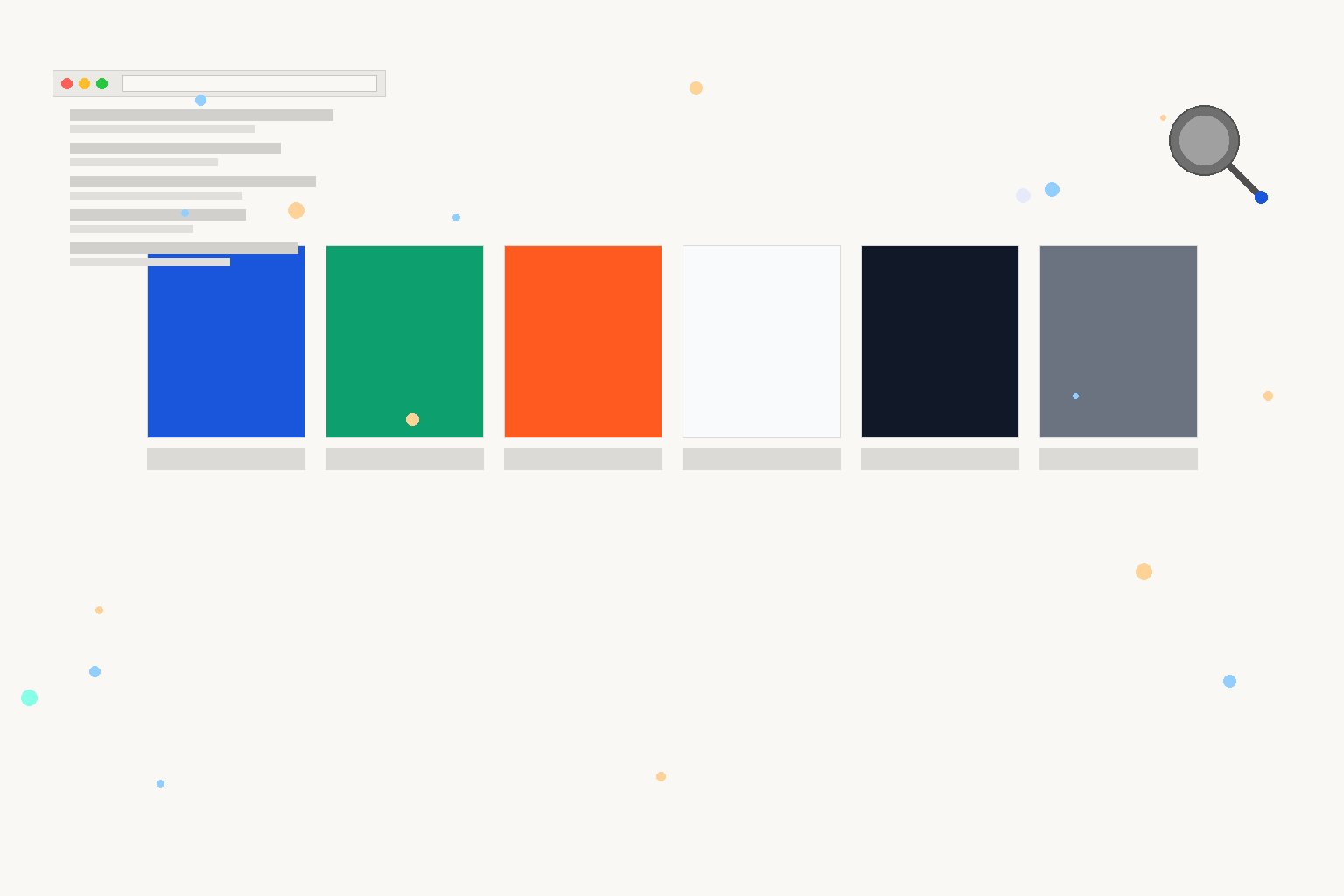
How to Automatically Get a Website's Brand Color Palette
Getting a full brand color palette from a website is one of those tasks that sounds simple until you're twenty minutes into clicking around DevTools wondering why the button you're sampling is actually a gradient overlay on an rgba value. Here are the approaches that actually work, ordered from manual to fully automated.
Start with CSS Custom Properties
Most modern sites define their palette once as custom properties on :root and reference those tokens everywhere else. That means the entire palette is in one place, not scattered across hundreds of declarations.
Open DevTools, click the <html> element in the Elements panel, then switch to the Computed tab. In the filter field, type --color or --brand. If the site uses design tokens, you'll see something like this:
:root {
  --color-primary:    #1a56db;
  --color-secondary:  #0e9f6e;
  --color-accent:     #ff5a1f;
  --color-background: #f9fafb;
  --color-surface:    #ffffff;
  --color-text:       #111928;
  --color-muted:      #6b7280;
}
When you hit this pattern, stop looking anywhere else. Those values are the palette. Copy them out and you're done. The token names also tell you the intent behind each color, which is more useful than a raw hex list.
If the site uses a naming convention like --clr-* or just defines things like --primary, try searching for those prefixes instead.
Read the Compiled Stylesheet When There Are No Tokens
Not every site uses custom properties. Older codebases, some WordPress themes, and sites with legacy CSS will declare hex values inline across dozens of classes. For those, go to the Sources panel in DevTools, find the main stylesheet (often named something like app.css or main.min.css), and run a find for #.
That will surface every hex literal in the file. Skim for repeating values: the ones that appear the most are the palette. The ones that appear once or twice are usually legacy one-offs, hover state tints, or borders that never got consolidated.
You can also download the stylesheet and run a frequency count locally:
grep -Eo '#[0-9a-fA-F]{3,6}' main.css | sort | uniq -c | sort -rn | head -20The top five or six values are almost always the complete functional palette. Everything after that is noise.
Check the Logo SVG for Ground Truth Colors
When you need to know the canonical value of a brand's primary color, the logo is the most reliable source. It was exported from Figma or Illustrator by whoever built the identity, and SVG path fills are raw hex values that don't change based on dark mode, A/B tests, or component-level overrides.
In DevTools, search the page source for <svg or filter the Network tab to SVG files. Open the file and look for fill="#" attributes:
<svg viewBox="0 0 120 40" xmlns="http://www.w3.org/2000/svg">
  <path d="M0 0 L60 0 L60 40 L0 40 Z" fill="#1A1A2E"/>
  <path d="M65 8 L115 8 L115 32 L65 32 Z" fill="#E94560"/>
</svg>
Those fills are the brand's core colors. Cross-reference them against what you found in the stylesheet to confirm you have the right values.
Automated Extraction for Multiple Sites
Manual DevTools work is fine when you need one site. For a competitive audit across five or ten competitors, the manual approach compounds fast. To use Inspect Brand, you paste a URL and get the full extracted palette, fonts, and favicon without opening DevTools on each site.
The output is structured and ready to use. For a competitor audit, that might look like:
{
  "url": "https://competitor.com",
  "colors": {
    "primary":    "#1a56db",
    "secondary":  "#0e9f6e",
    "accent":     "#ff5a1f",
    "background": "#f9fafb",
    "text":       "#111928"
  },
  "extracted_at": "2026-06-15"
}
For new-business pitches or category research, this cuts a few hours of manual work to a few minutes. You get consistent output across all the URLs you're analyzing, which makes comparison easier.
What to Watch For
A/B test color swaps: Marketing pages often test button colors. What renders on screen may be a variant, not the canonical value. When in doubt, cross-check against the CSS token definition or the logo SVG.
Opacity variants: A background-color: rgba(26, 86, 219, 0.1) is not the primary color. It's an overlay at reduced opacity. Document the base hex, not the transparency version.
Dark mode palettes: Sites that support dark mode define two palette sets in CSS, one under @media (prefers-color-scheme: dark). If your system is in dark mode, DevTools will show you the dark values. Make sure you're checking both or setting your system to light mode first.
Inherited computed values: The Computed tab shows what's actually rendering, including values inherited from parent elements. For palette documentation, you want declared values from the stylesheet or token file, not computed ones.
Documenting What You Find
Once you have the hex values, assign each one a semantic role before adding it to any reference file. A list of hex values without context is almost useless three months later.
/* competitor-name color palette, extracted 2026-06-15 */
:root {
  --cp-primary:    #1a56db;   /* CTAs, links */
  --cp-secondary:  #0e9f6e;   /* success states, tags */
  --cp-accent:     #ff5a1f;   /* highlights, badges */
  --cp-bg:         #f9fafb;   /* page background */
  --cp-text:       #111928;   /* body text */
  --cp-muted:      #6b7280;   /* secondary text, captions */
}
Keeping competitor palettes as isolated token sets in your research files means you can reference them cleanly without accidentally mixing them into your own system.
---
Getting the right hex values once saves you from revisiting the same sites repeatedly, and it saves whoever reads your documentation from having to trust that you eyeballed the color correctly. The difference between the right value and a close guess is invisible on screen but shows up when colors need to print, appear in a slide deck, or get handed off to another designer working in a different context. Get the source values, document the roles, and move on.